Configuring Import Settings
In this section you will learn how to configure the settings for the Import you are about to undertake.
Written By NatalieO97
Last updated Over 1 year ago
After selecting the file you wish to Import, you will need to configure the Import Settings. Below the file button, there are a number of other import options.
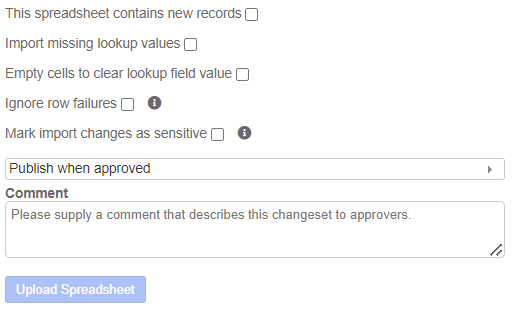
This spreadsheet contains new records – Tick this box if the file you are import contains new records.
Import Missing Lookup Values - This field is for administrator use only. Access permission will not permit a tick. Please ignore for this process.
Empty cells to clear lookup field value - You should only tick this box if you want to clear out existing data. As a default, this option should be left unticked
Ignore row failures - If there are any errors in the import file (for example due to incorrect formatting or poor data), Fundipedia gives you the option to either fail the import completely, importing no records, or import only the records for which there are no errors. Checking the ‘Ignore Row Failures’ box will allow Fundipedia to import records with no errors even if other records in the file have errors. In this instance, the file will show the message ‘Completed with Errors’ in the Import History and you will be able to view the import log to identify which records contained the errors. If Fundipedia identifies a single error for a given record, then no data from that row will be updated in Fundipedia. This box is, as a default, left unticked.
Mark import changes as sensitive - When a file successfully imports into Fundipedia, edits that require approval sit in the Approvals section as a pending change until a user with the requisite permissions approves them and they go live on Fundipedia. When importing particularly sensitive data you may want to hide these pending changes from other users. Checking the ‘Mark Import Changes as Sensitive’ box will hide these pending changes from all users except those who have permissions to view sensitive changes. . This box is, as a default, left unticked.
Publish when approved - When the import file has loaded and has subsequently been approved, the data will be published into the database immediately.
Comments - The comment box provided is not mandatory, but is useful for giving approvers more information about the records which are being created. Any comment you leave will appear alongside the pending creations in the Approvals tab.
On completing the import settings, click the blue ‘Upload Spreadsheet’ to proceed to the next stage of the process. The data will not be released into the database until the Approvals process has been completed.