Data Upload
Written By NatalieO97
Last updated About 1 year ago
The Data Upload function can be used to upload new data onto the FUNDAnalyser platform and can be accessed by following the link below -
https://app.fundanalyser.org/1/upload
The link will take you to this page, where you will find the relevant AFM that you need to upload data for. Please find example below -
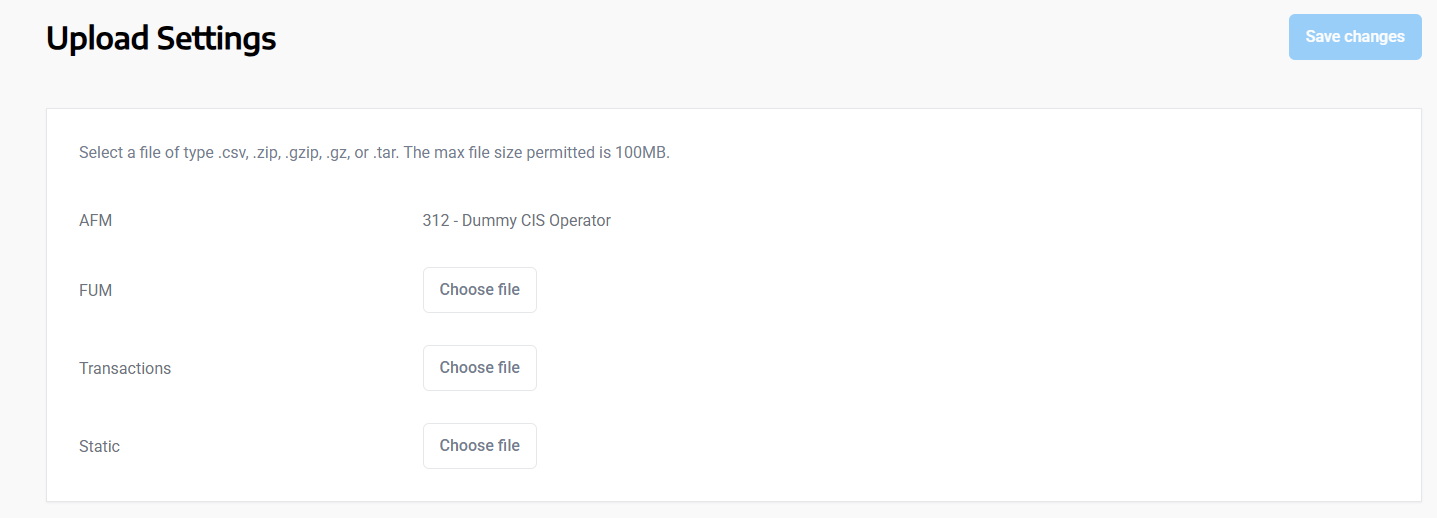
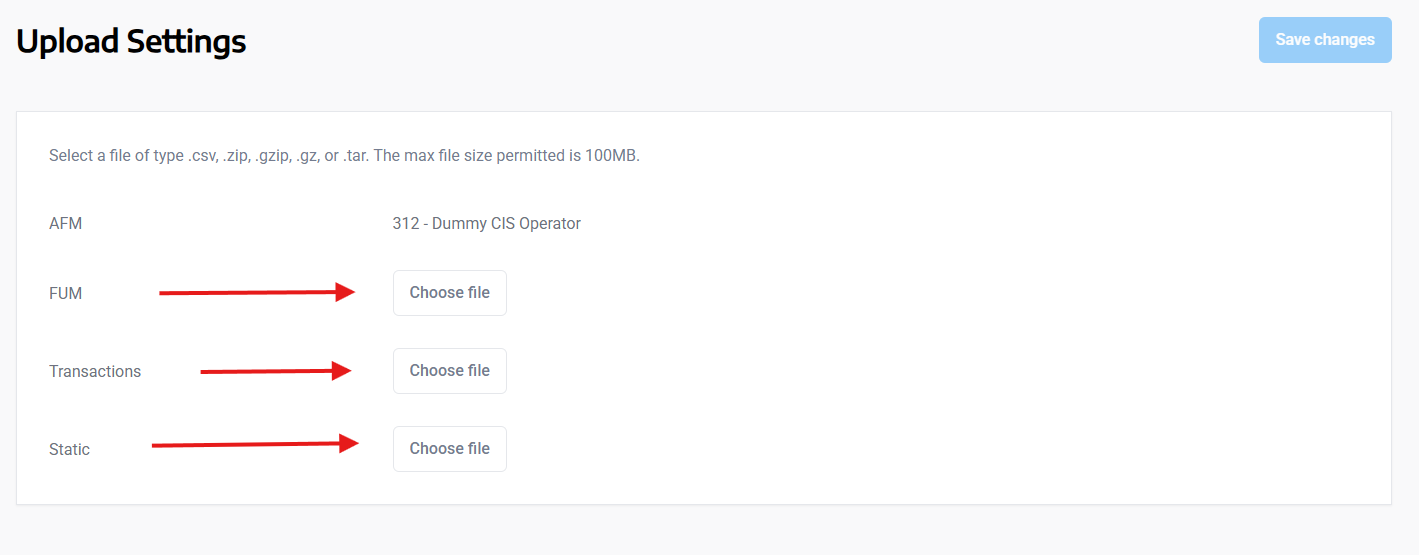
After selecting the correct AFM, you can click on the ‘Choose file’ button, that correlates with the file that you would like to upload.
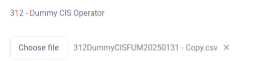
When preparing your file, please ensure that the name of the file follows the IA guideline that state the file name format requires AFM code, AFM name, year, month.
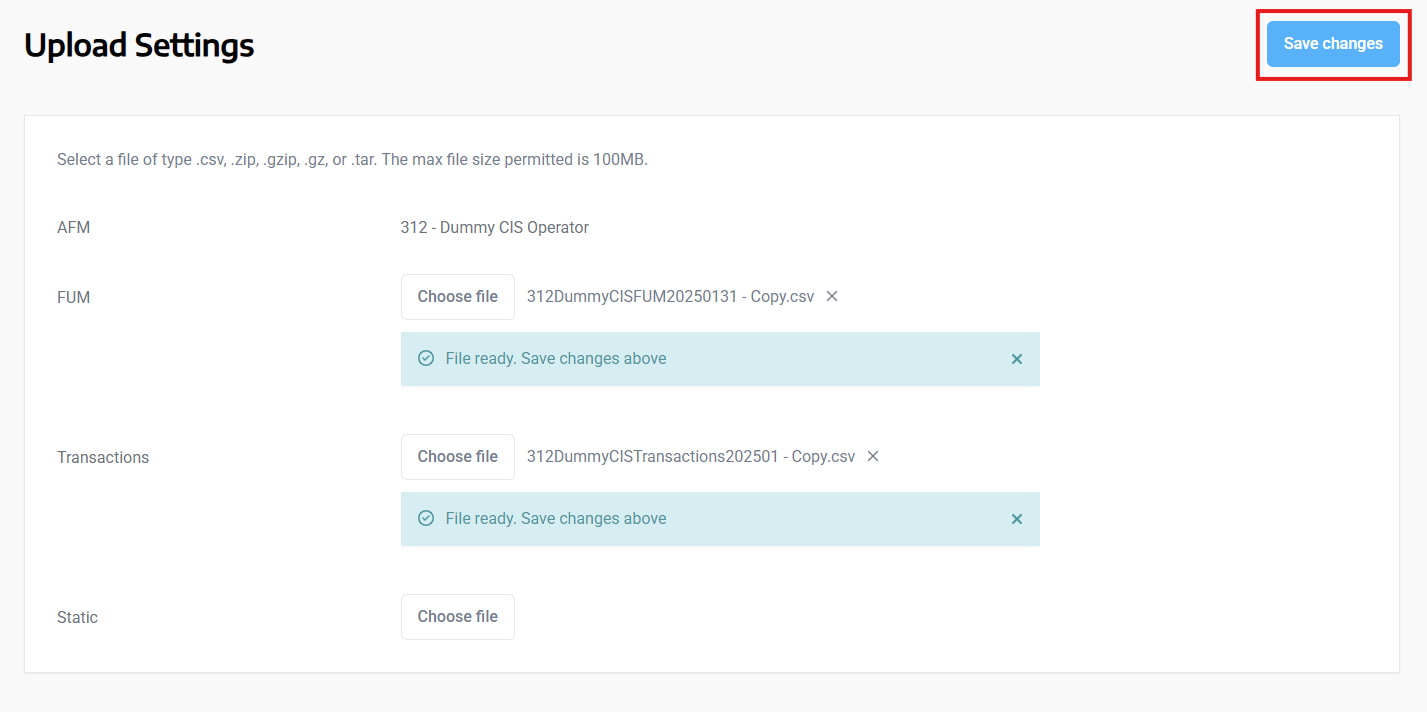
After selecting your file, click save changes in the top left hand corner of the page.
When preparing the file for upload, please ensure all blank cells are populated with a zero, and the header names match those shown in the screenshot below .
FUM File -

Transaction File -

Upload for Offshore & Onshore files
If you are uploading both Onshore and Offshore filenames include the relevant title -
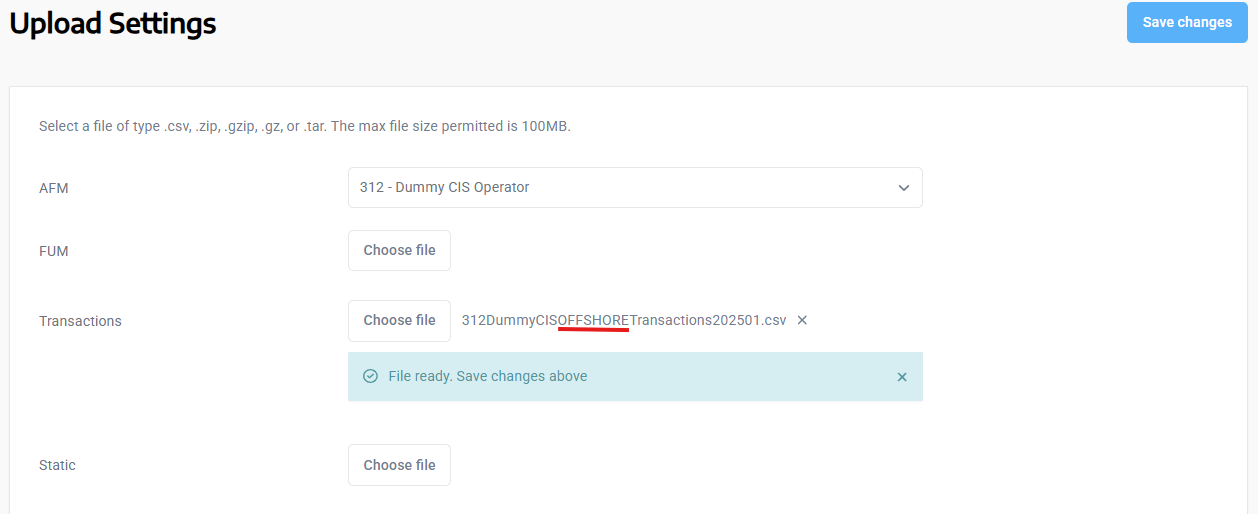
You do not need to archive any fields here and when the prompt to archive a file appears, ignore this and click “Confirm”.
The end result should be ensuring that there are four files loaded: two for onshore and two for offshore.


Completeness Check
You can find the completeness status of your upload in the last column of the dashboard, the status will either be Completed, or Failed.
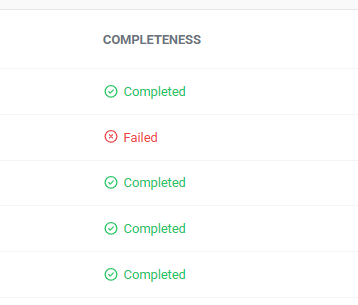
If the status of your completeness check is Failed, you will need to click in to it to find out why it has failed.
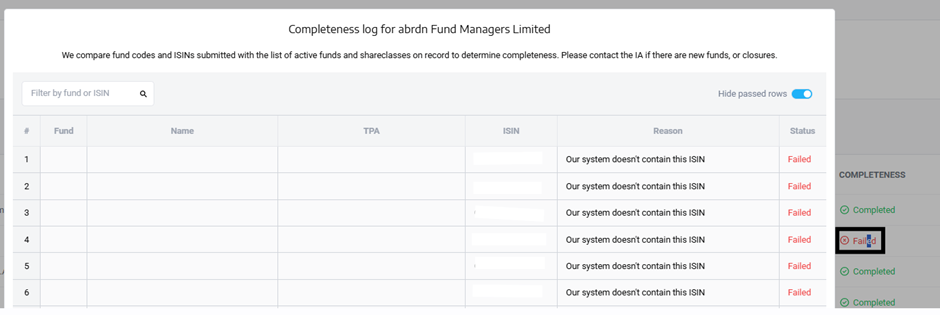
A table will appear that tells you what share class/ fund has is affected and the reason column will let you know the cause of the failure, which you will need to rectify.
Please contact the IA if there are any closures or new funds/share classes for existing funds that you wish to add.
Upload Status’
Below are a list of status’ that you may come across once your file is uploaded-
Any Action Required = 'Action Required'
Any Failed = 'Failed' (if any file has a status of failed, then the dashboard will be failed, etc)
Any 'In Progress' = 'In Progress'
Any Cancelled = 'Cancelled'
All Completed = 'Completed'
Any Completed = 'In Progress' (mix of status and still running)
Otherwise 'Pending'
Action Required
When action is required on an upload, you will see this yellow flag followed by ‘Action Required’
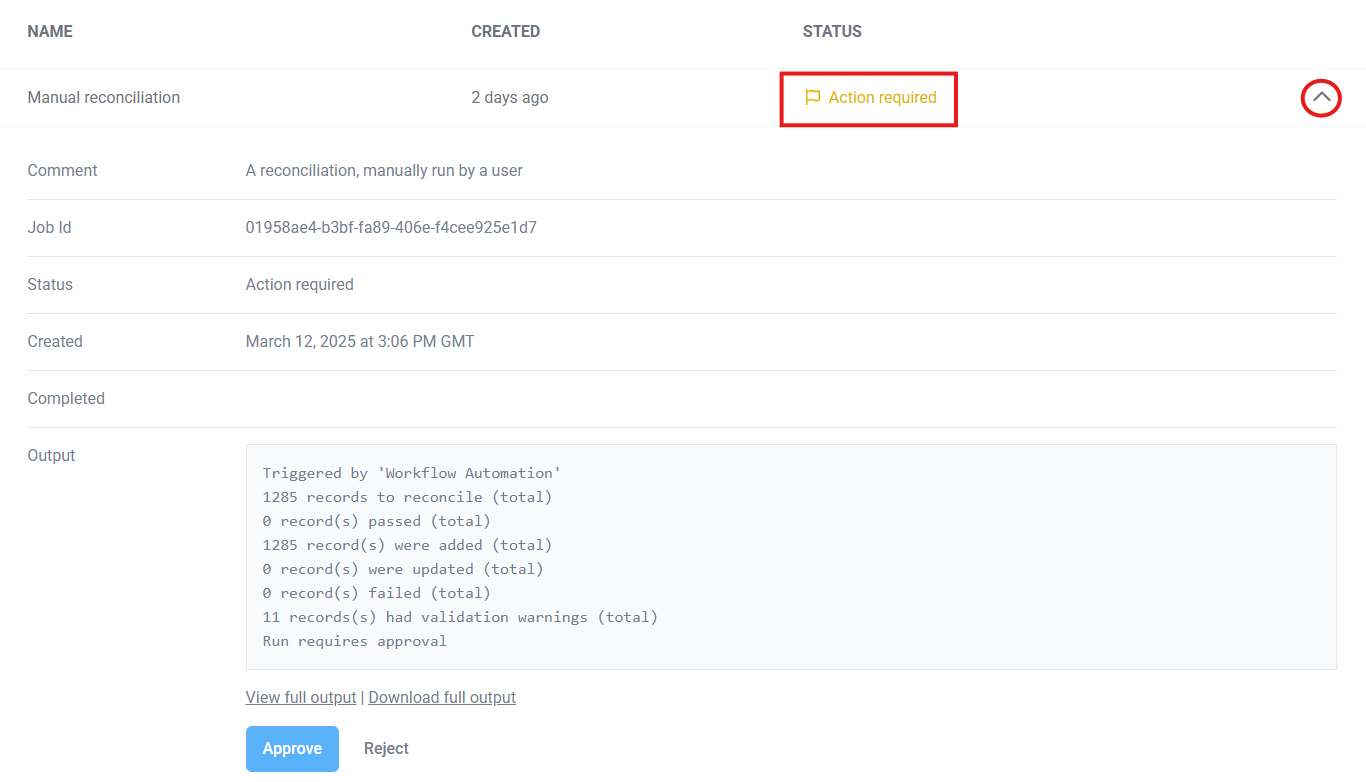
An IA Admin will then need to go into the upload to approve or reject it.
Upload Failures
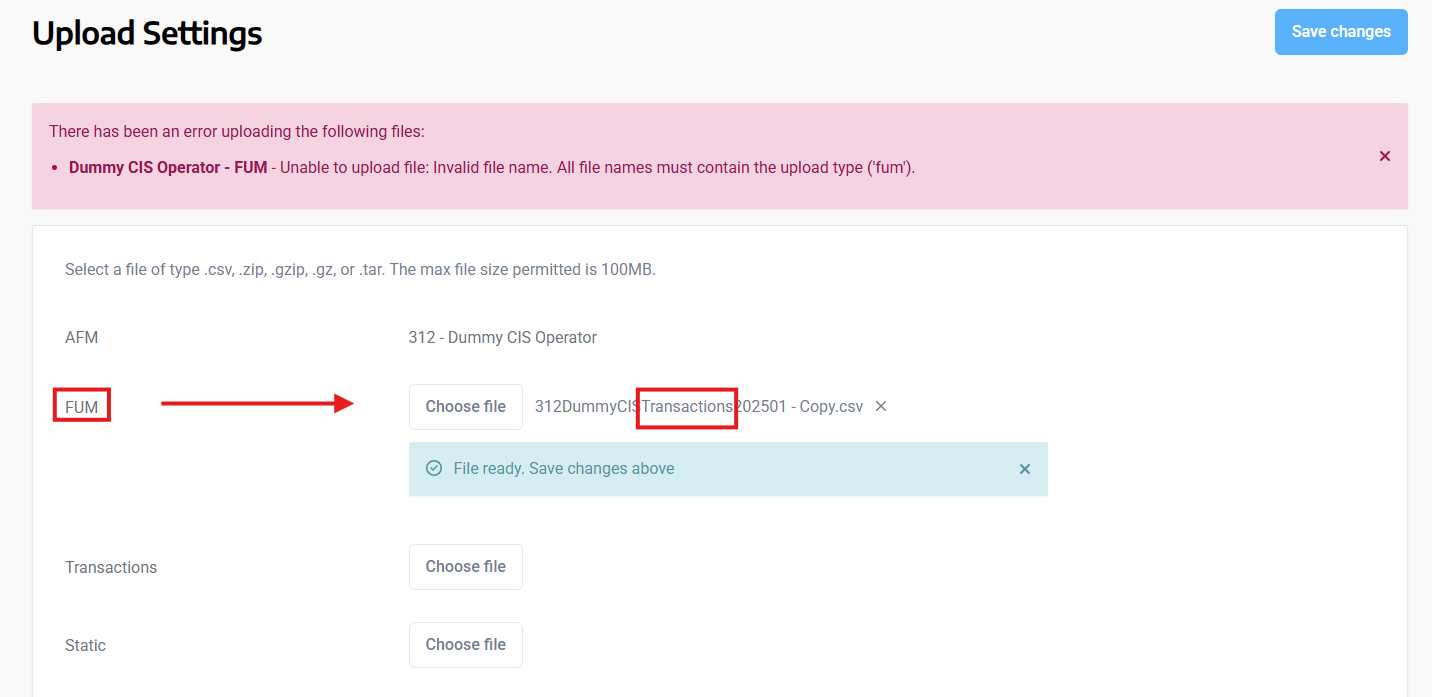
An upload can fail if the file name does not match the upload type you have selected. In this example, I have attempted to upload a transaction file but the file was unable to be uploaded due to the file name being invalid. All file names must contain the upload type ('transactions' in this example).
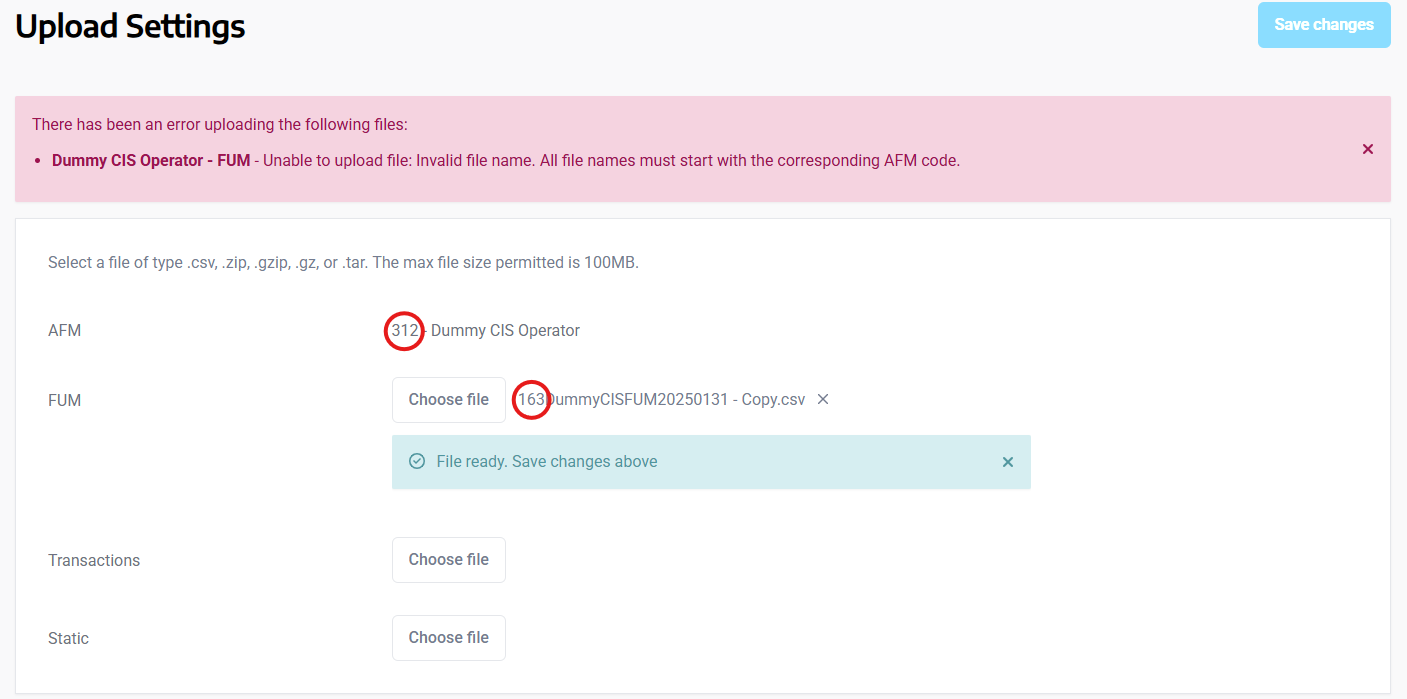
An upload can also fail if the AFM code selected does not match the AFM code in the file. In this example, I have selected the 163 AFM code, but then selected a file containing the 312 AFM code. The file was unable to be uploaded due to the file name being invalid. All file names must start with the corresponding AFM code.
To check if your upload has been successful or not, you must navigate to the Upload History page. You can do this by clicking ‘Upload History’ from the menu on the left hand side.
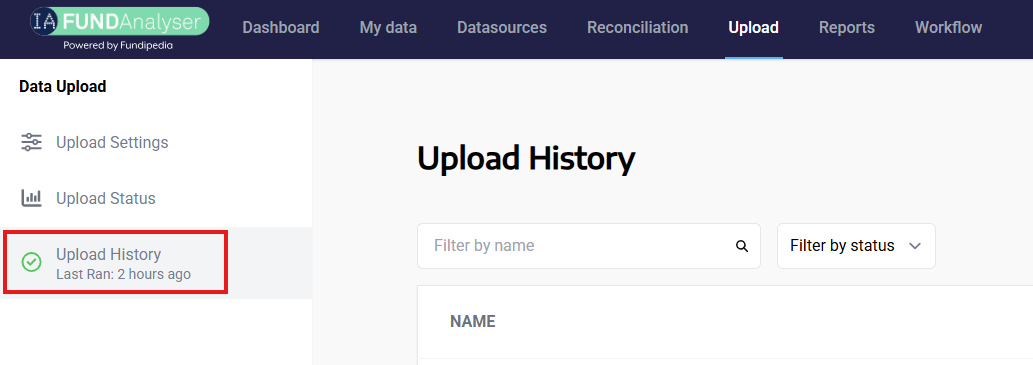
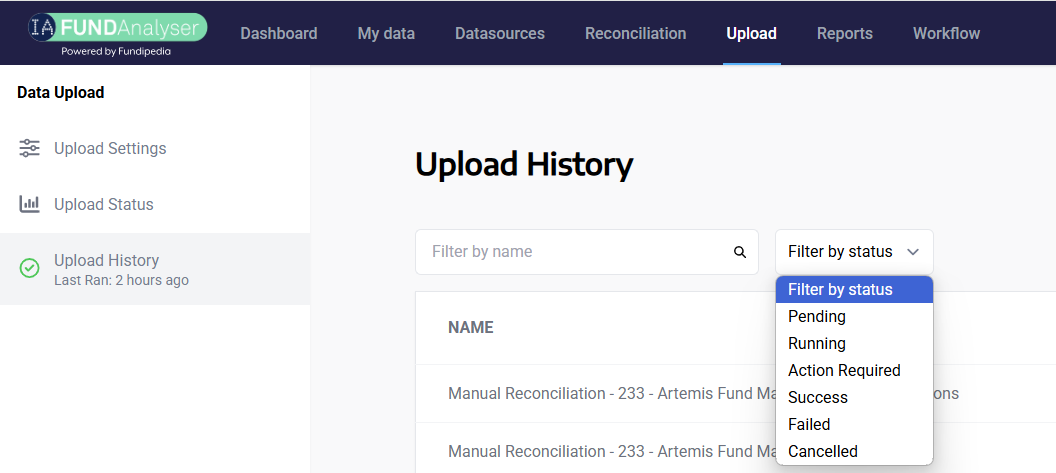
Here you will be able to search for your upload by either filtering by name, or filtering by status.
If it has failed, you can click on the arrow circled below and this will reveal the details of the failure in the output section.
Failure due to reconciliation
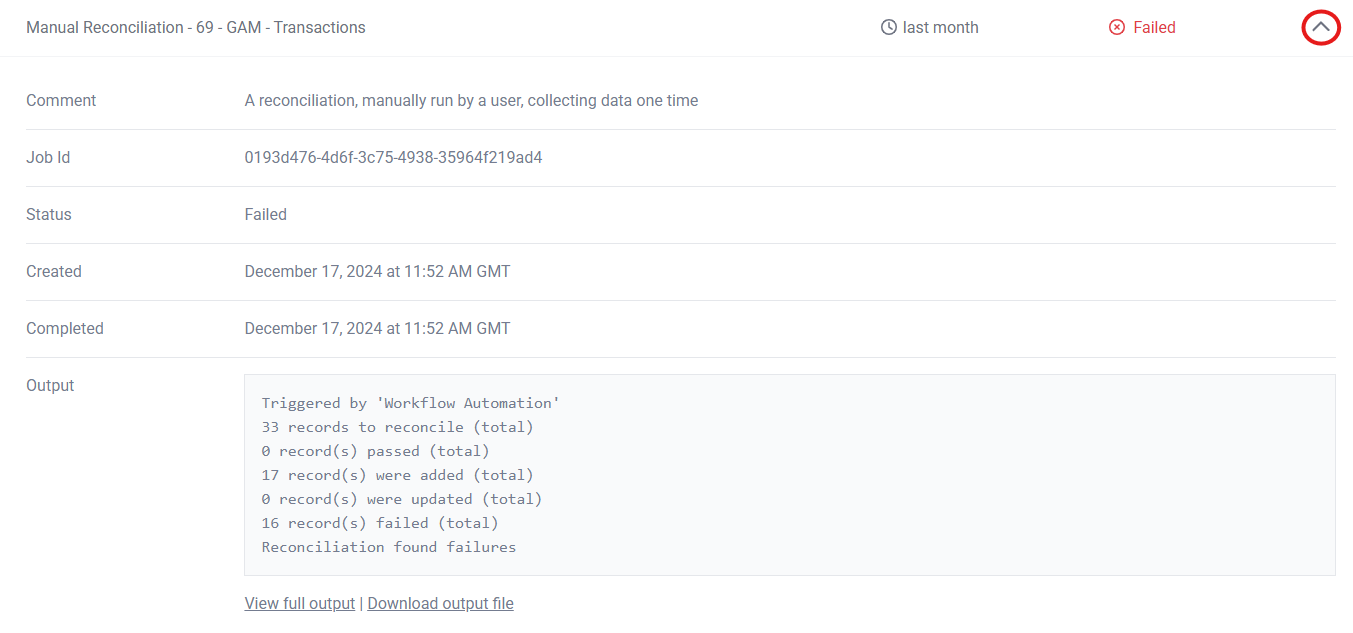
In the screenshot above, the output shows us that there are 16 failed records in total. We can look into this further by clicking on ‘View full output’.
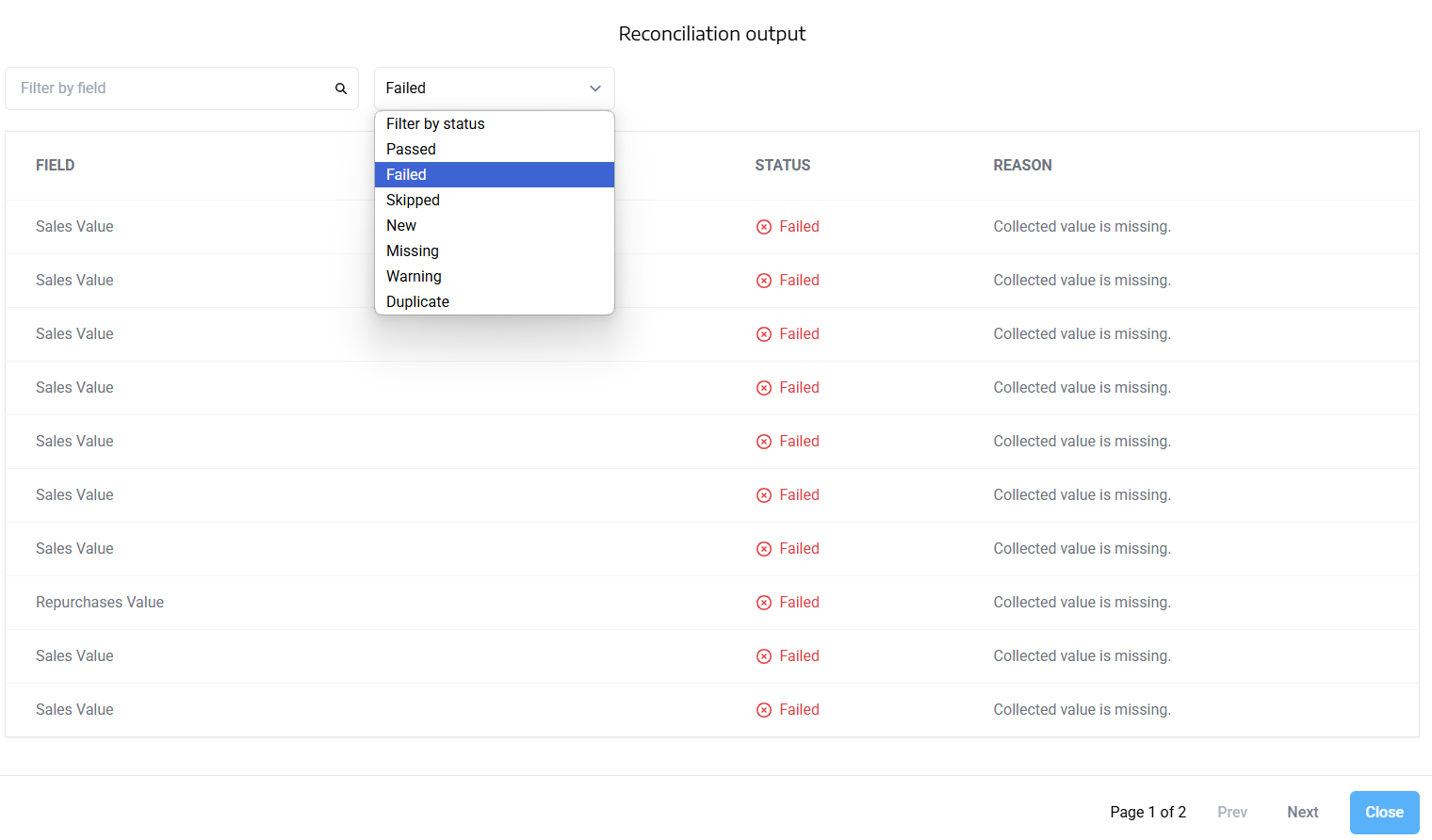
Here you will again, be able to filter by status. After filtering on failed, we can see in the ‘Reason’ column, that the upload failed due to missing values in the correlating fields.
Another common reconciliation failure can be when a value has been seen as a minus.
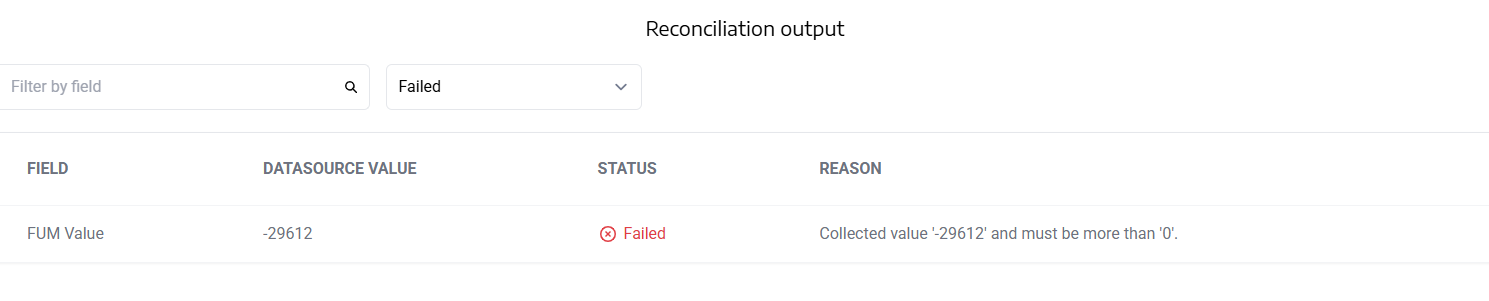
To fix this you will simply need to amend the file and re-upload it.
Failure due to invalid ISIN code for AFM
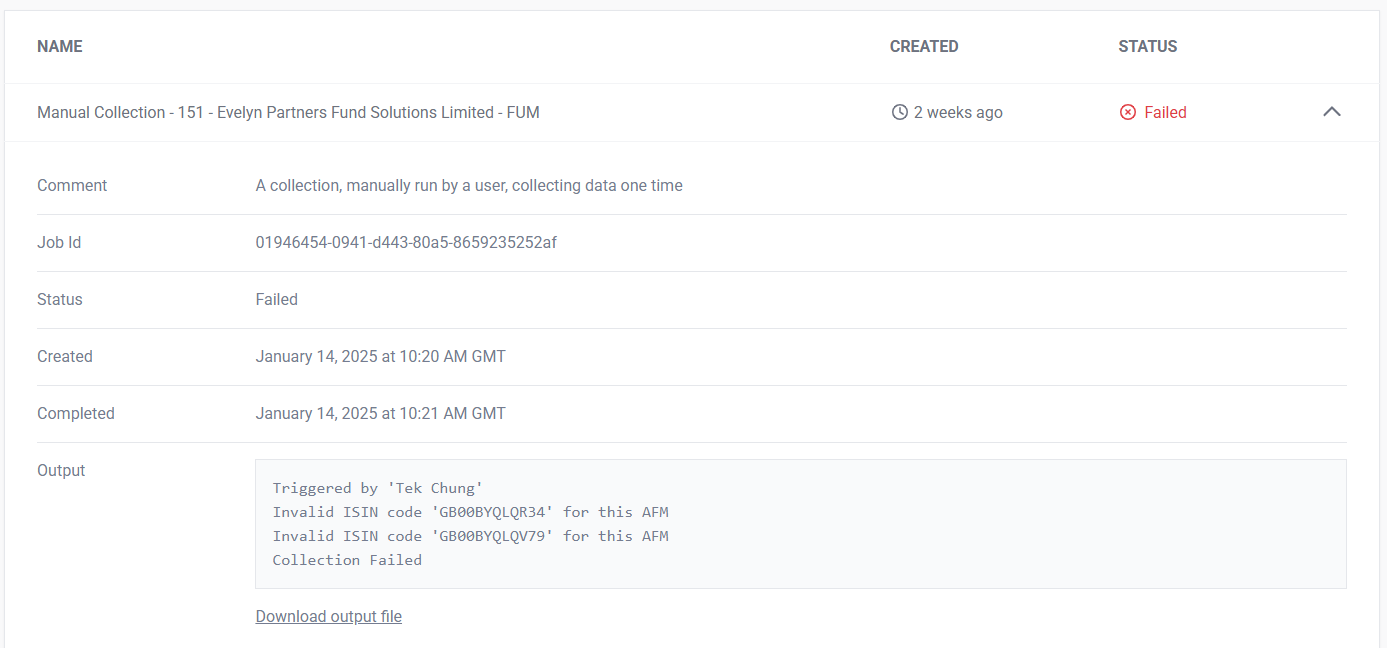
This message lets you know that the ISIN code is invalid for this AFM. Your IA admin will be able to amend the Authorised Fund Manager-Fund New relationship for you to rectify this issue by following the link below -
Pending
There are a few reasons why an upload status will be ‘Pending’
If a collection is pending, the file has been uploaded and is waiting for the hold queue (this could mean that there is reconciliation for the same AFM with an action required needed)
If a reconciliation is pending, the file has been completed by the datasource and the system is waiting on the workflow to trigger the reconciliation (this could be delayed if there are delays with workflow) - This can usually be fixed by manually running the reconciliation.